
If you are searching for FORScan for Chromebook, do not download a random Chromebook EXE, APK or repacked Linux installer. The verified desktop workflow is Windows-based. A Chromebook may still help you reach a remote Windows computer or experiment with its Linux environment, but ChromeOS does not automatically provide the Windows driver, USB ownership and vehicle-network reliability that a diagnostic session needs. The safest path is a supported Windows PC; if you test a Chromebook-based route, begin with read-only identification and DTCs.
Can FORScan run natively on a Chromebook?
There is no verified native ChromeOS desktop package published through the official FORScan download source. The desktop application is distributed for Windows, so a file advertised as a Chromebook edition should not be treated as official simply because it has an APK, Linux or ChromeOS label.
A Chromebook is not one single hardware target. Some models support Android apps, some support a Linux development environment, and managed school or work devices may block both. Those features do not turn a Windows installer into a supported ChromeOS application. They also do not prove that a USB or Bluetooth OBD adapter can reach the vehicle through every software layer.
The practical answer to “how to run FORScan on Chromebook” is therefore conditional: use the Chromebook as a screen or a controlled experiment, not as proof that a native diagnostic platform exists. Keep the official Windows download page as the source of the desktop installer and check the current release on the versions guide before installing anything.
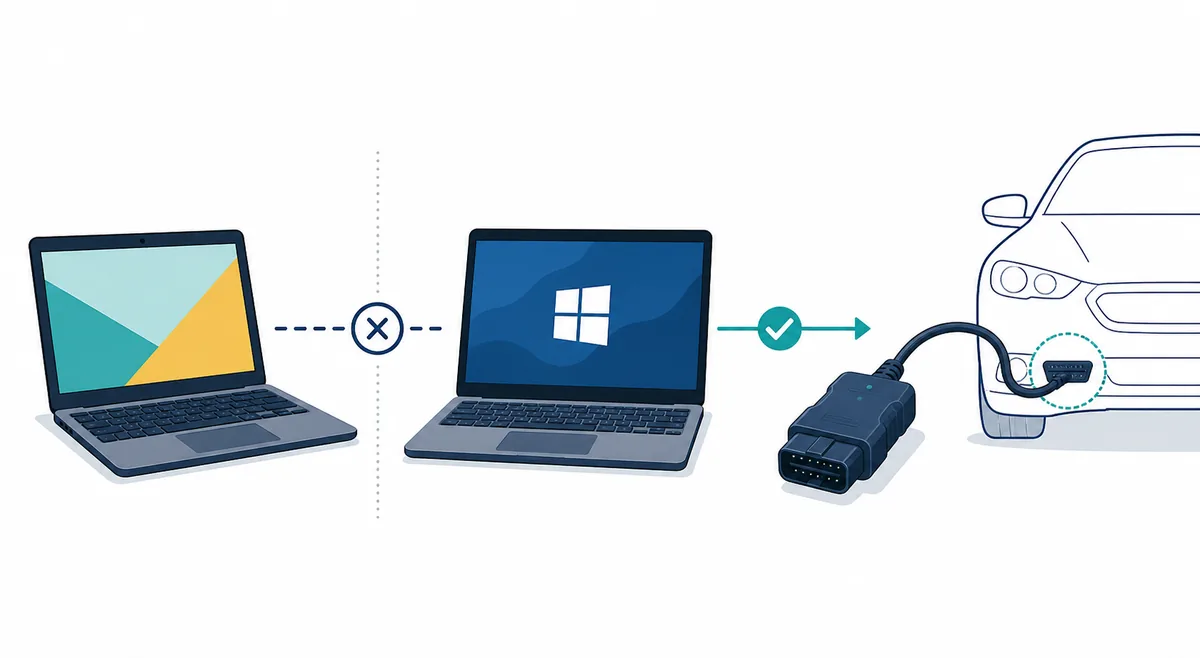
What the Chromebook alternatives actually mean
Choose a path based on the task and the connection risk, not only on whether the FORScan window opens.
A separate Windows laptop is the clearest baseline because the adapter driver, COM-port behavior and FORScan documentation can be checked in one environment. A remote Windows session can be reasonable when the vehicle-side computer is already stable, but it should not be mistaken for remote access to a Chromebook-connected adapter.
The Linux option is attractive because ChromeOS can provide a Linux environment on compatible devices. That is an operating-system capability, not a FORScan support statement. Treat it as an experiment for reading information only until repeated connections demonstrate otherwise.
| Path | Useful for | Important limitation |
|---|---|---|
| Separate Windows laptop | Full desktop diagnostics, documented drivers and sensitive procedures | Requires access to another supported computer |
| Remote Windows session | Using a Windows machine that is already connected locally | The vehicle and adapter remain at the Windows machine; remote input adds operational risk |
| ChromeOS Linux container or Wine | A controlled read-only experiment with ordinary desktop software | Windows drivers, USB serial access and vehicle-network timing may not work |
| FORScan Lite on a supported mobile device | Portable diagnostics where the mobile feature set is sufficient | It is not the full Chromebook or Windows desktop application |
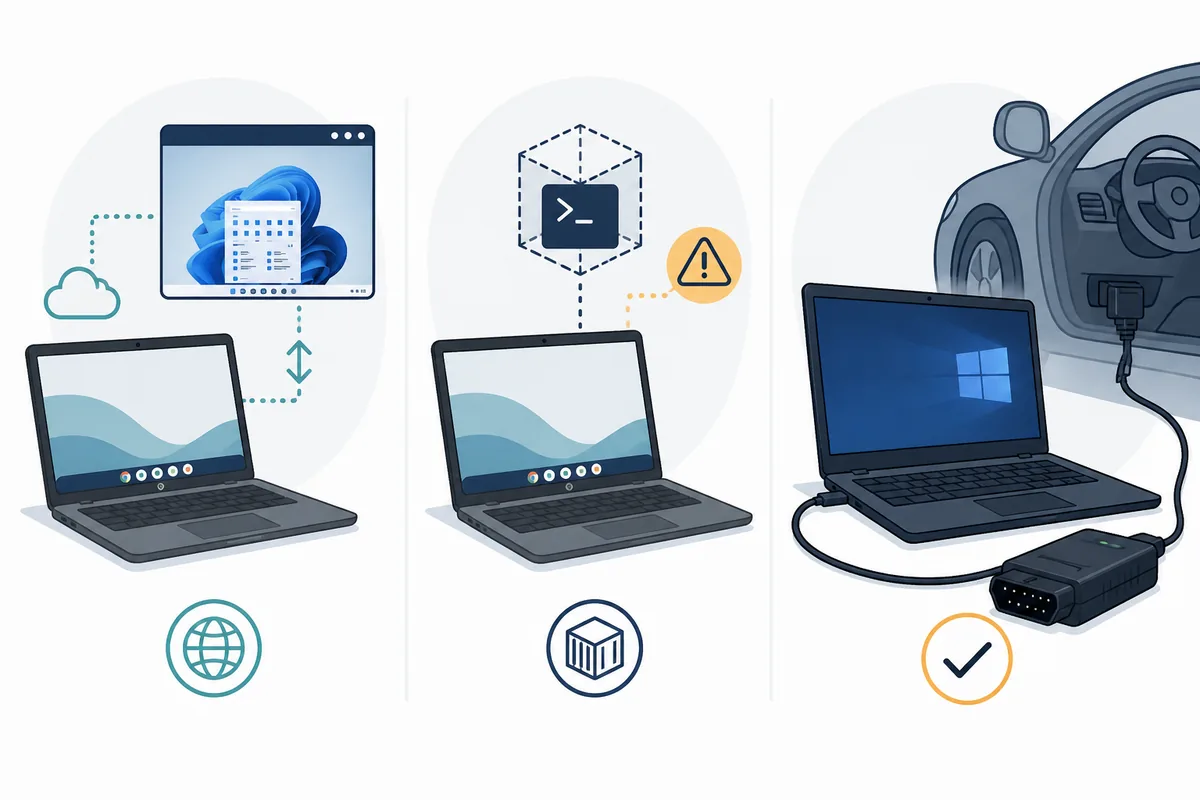
What ChromeOS Linux and Wine can and cannot prove
The ChromeOS Linux environment is a containerized development environment rather than a second, fully supported Windows computer. It can be useful for command-line work and compatible Linux applications, but the fact that an installer launches under Wine does not prove that a Windows kernel driver, serial adapter or vehicle bus will behave correctly.
USB access is the main boundary to watch. ChromeOS, the Linux container, Wine and the application may each have a different view of the device. A device can appear in one layer while the diagnostic application cannot use it, or the connection can drop when the Chromebook sleeps, changes networks or reassigns the USB device.
If you still investigate this route, document the exact Chromebook model, ChromeOS channel, Linux environment, Wine build, adapter model and vehicle network. Do not solve a missing driver by downloading a repackaged FORScan bundle. A clean failure is safer than an unknown installer that combines software and drivers.
- Confirm that Linux is allowed and supported on the exact Chromebook rather than assuming the menu exists.
- Use one adapter connection at a time and record whether the same device remains visible after reconnecting.
- Avoid relying on Bluetooth auto-switching between ChromeOS, Android and Linux during a session.
- Treat application launch as a low-value test; adapter discovery and stable read-only data matter more.
- Stop if the connection changes identity, disappears or requires an unverified driver package.
How to test a Chromebook-based setup more safely
The goal of an initial test is to establish a repeatable read-only connection, not to prove that every FORScan function is available.
A repeatable read-only result is useful evidence, but it is not a guarantee for a write. Vehicle state, ignition voltage, adapter network support, driver behavior and sleep management can all change the outcome. Keep backups outside a Linux container or remote desktop session and make sure you know how to return to a supported Windows setup.
For a detailed desktop baseline, compare the result with the Windows 11 setup guidance and the adapter pages. If the same adapter works consistently on a supported Windows laptop but not through the Chromebook path, the issue is the extra platform layer rather than a reason to find a different unofficial FORScan build.
- 1
Verify the source
Open the official FORScan download page and confirm the current Windows release. Do not use a search result that promises a Chromebook APK, cracked package or one-click ChromeOS installer.
- 2
Reduce the connection variables
Use one known adapter, one vehicle and one software path. Prefer a documented wired adapter when possible, and prevent the Chromebook or remote Windows host from sleeping during the test.
- 3
Identify before reading
Start with vehicle identification, module discovery and diagnostic trouble-code reading. Record whether the adapter remains connected after a reconnect and whether the same modules appear again.
- 4
Stop before a write
Do not move to configuration, As-Built changes, programming or other write operations if the adapter disappears, the COM device changes, the remote session lags or the environment has not been repeated successfully.
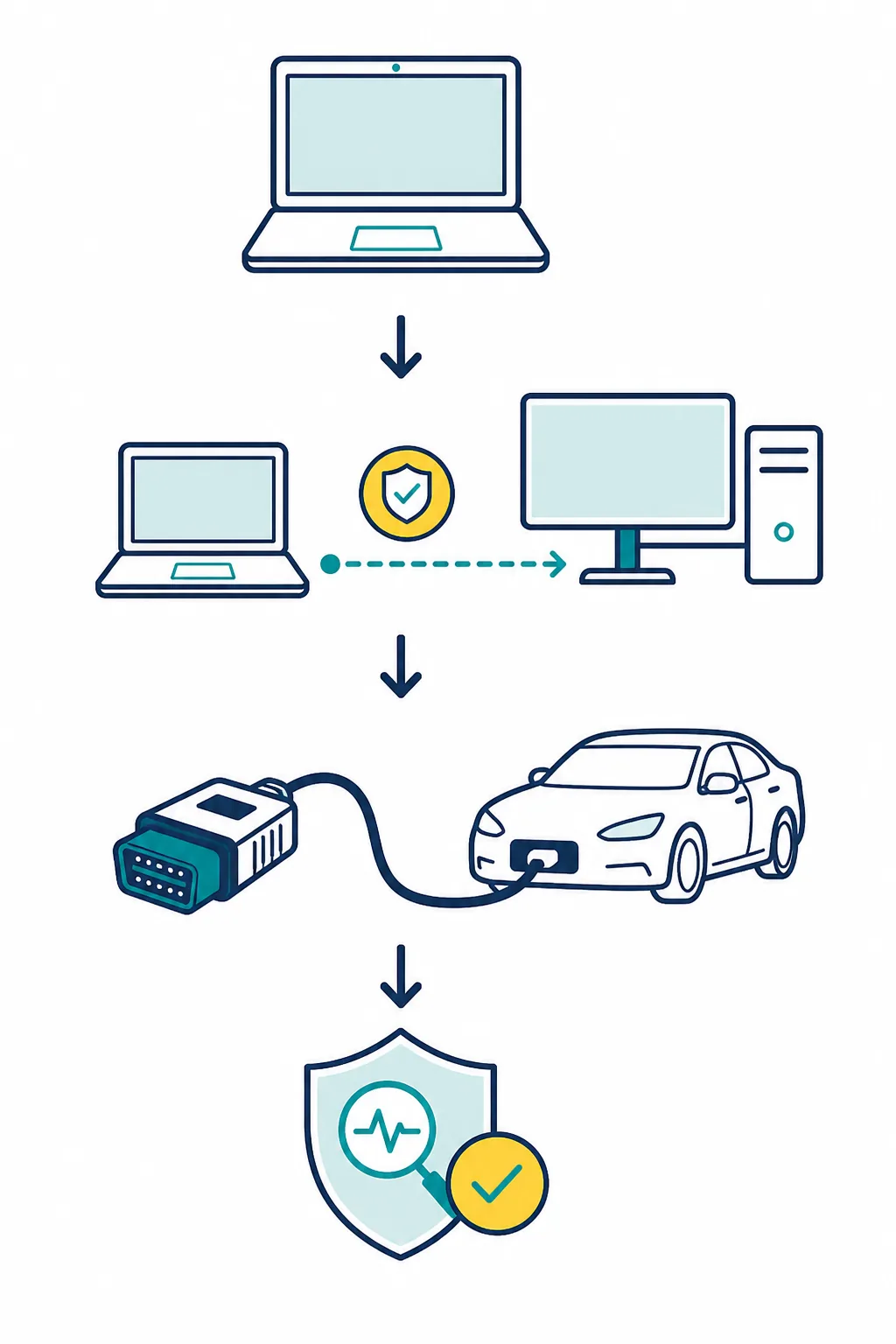
Choose the right adapter and Windows fallback
The adapter is part of the platform decision. A Chromebook setup that depends on a vendor-specific Windows driver is a weaker candidate for Linux or remote experimentation than a documented wired adapter used directly on a supported Windows machine. Wireless adapters add another layer because radio ownership may move between ChromeOS, Android, Linux and the remote host.
Use the adapter guide to compare ELM327 behavior and the OBDLink EX guide when a wired Windows path is appropriate. These pages do not make a Chromebook compatible; they help you avoid changing software when the actual constraint is the adapter, vehicle network or driver.
| Situation | Prefer | Avoid |
|---|---|---|
| Read-only experiment | One documented adapter and a repeatable connection | Changing adapter, Wine build and vehicle at the same time |
| Configuration or programming | Supported Windows PC with stable power and a known adapter | A first-time Chromebook Linux or remote-session path |
| Wireless troubleshooting | A single explicitly assigned device or a wired baseline | Letting multiple host systems claim the same radio |
| Unclear installer | Official developer download page and current version reference | Third-party APK, repack, torrent or “Chromebook edition” |
What not to download for FORScan on Chromebook
A safe download decision is part of compatibility troubleshooting. If a page promises “FORScan for Chromebook” but cannot identify the developer source, supported release channel, package signature and adapter requirements, it is not solving the platform problem. It is adding a software-supply-chain problem.
Check the current version page before any setup, and return to the official developer page when an installer is required. If the official source does not list ChromeOS, describe the Chromebook route as an experiment or a remote workflow rather than calling it a native download.
- Do not install an EXE renamed as an APK, a DMG, a Linux package or a Chrome extension.
- Do not use a torrent or repacked archive that bundles FORScan with a driver, license file or activation patch.
- Do not treat a generic Chromebook app listing as proof that the developer publishes a native ChromeOS desktop version.
- Do not disable browser or ChromeOS security controls just to test an installer whose publisher and release history are unclear.
- Do not use a configuration or programming procedure as the first test of a new operating-system and adapter combination.
Which Chromebook route should you choose?
Choose a supported Windows laptop when you need dependable module configuration, programming, a long service session or a recovery path that another person can reproduce. Choose a remote Windows session only when the vehicle-side computer and adapter are already stable and you can control the session safely. Choose ChromeOS Linux or Wine only for a documented read-only experiment where failure has no write consequence.
The answer to “can I get FORScan on a Chromebook?” is therefore not a promise that an unofficial package will work. A Chromebook can be a useful access device, but the reliable desktop baseline remains Windows. Keep the official source, adapter documentation, backups and version reference available so that a failed experiment does not become a reason to guess at a download.
FORScan for Chromebook FAQ
Can I download FORScan directly for a Chromebook?
No verified native ChromeOS desktop download is listed by the official source. Use the official Windows page and treat Chromebook Linux or remote access as separate, conditional workflows.
How do I run FORScan on Chromebook?
The safer options are to use a supported Windows computer remotely or test a compatible Linux environment for read-only work. Verify the adapter path first and do not begin with configuration or programming.
Will FORScan work in the ChromeOS Linux environment?
An application may open through Wine, but that does not prove Windows driver, USB serial or vehicle-network support. Test only with a repeatable read-only procedure and keep a Windows fallback.
Can I use a Chromebook with an ELM327 adapter?
It depends on the adapter, connection mode, ChromeOS permissions and the software path. Confirm that the same device remains available after reconnecting, and compare it with a supported Windows baseline.
Is there a FORScan Chromebook APK?
This page does not verify one. Do not install an APK or repackaged archive merely because it uses the FORScan name; use the developer source and current version reference instead.
Can I program a vehicle from a Chromebook?
A first-time Chromebook, Linux or remote-session setup should not be used as the programming test. Use a supported Windows computer with stable power, a documented adapter and a repeatable connection.
Checked August 10, 2026. The official FORScan download page is used as the Windows source. ChromeOS Linux capabilities are explained through ChromeOS developer documentation; neither source is treated as proof of a native Chromebook FORScan release.
FORScan developer download pageChromeOS developer: Linux on ChromeOSChromeOS Help: set up Linux