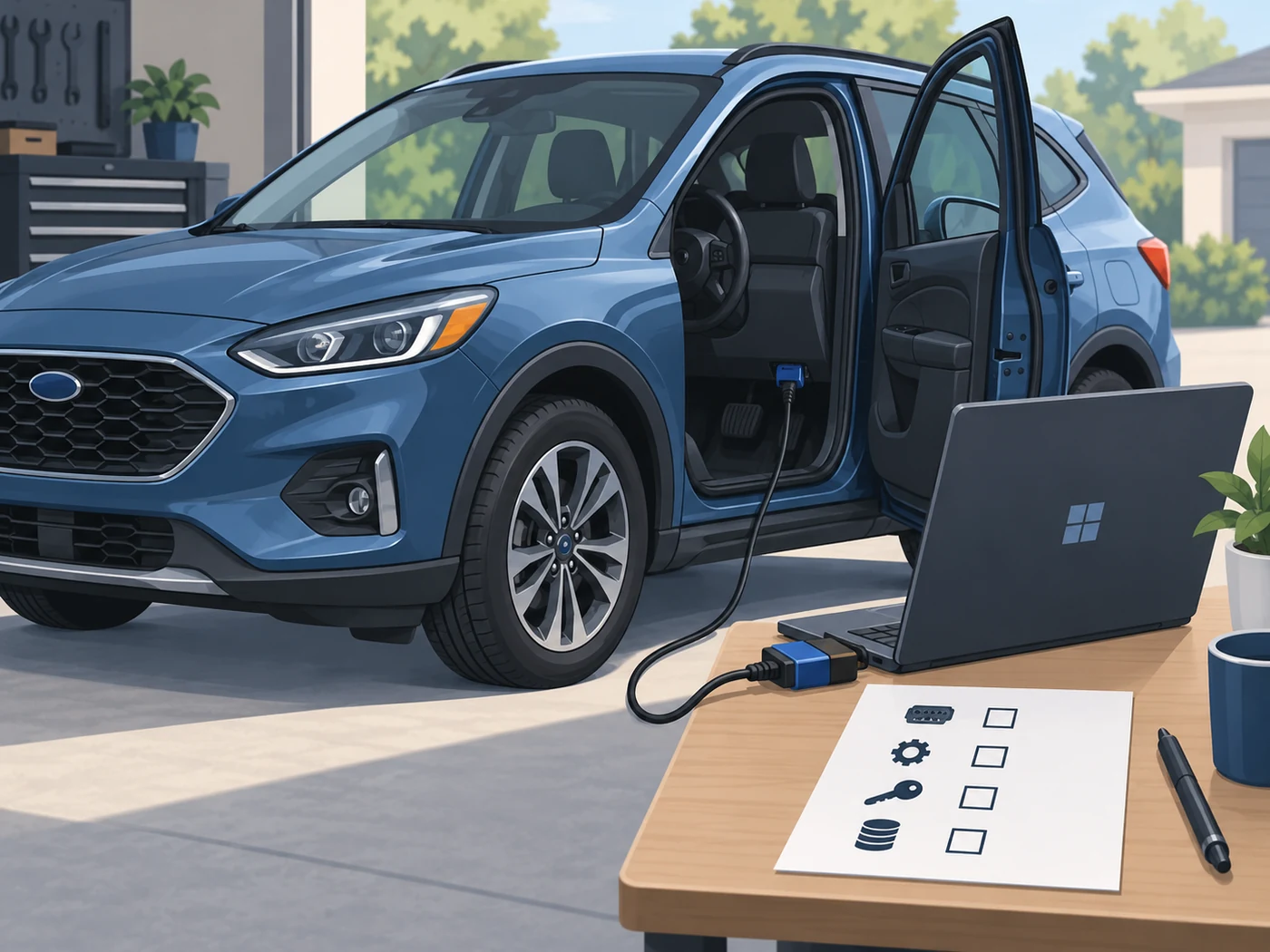
A dependable FORScan setup has four separate checkpoints: install the Windows application from a trustworthy source, make Windows recognize a compatible adapter, connect to the stationary vehicle with stable power, and complete a read-only scan before changing anything. Record the vehicle identity, adapter, driver and first module list. If the adapter drops, voltage is uncertain or the data source does not match the vehicle, stop and fix the setup instead of repeating a write.
What a FORScan setup actually includes
FORScan is a Windows diagnostic application used with a compatible interface to communicate with Ford-family vehicle modules. The application, the adapter, the Windows driver and the vehicle connection are one working chain. A successful download alone does not prove that the chain will identify every module, and a generic OBD reader is not automatically suitable for manufacturer-specific functions.
Treat the first session as an observation exercise: check the laptop, adapter, ignition state and vehicle profile together. A read-only baseline records the modules present before any later service or configuration task. Note the model year, trim, market, adapter model and connection mode.
The FORScan Windows 11 guide covers the operating-system side, while the ELM327 adapter guide explains why USB, Bluetooth and HS-CAN or MS-CAN support can change the result. This page joins those decisions into one first-session sequence.
| Part of setup | What to verify | Evidence to keep |
|---|---|---|
| Application | Correct Windows release and publisher | Version, source URL and install date |
| Adapter | Stable connection and supported CAN paths | Model, serial label and driver status |
| Vehicle | Stationary car, correct ignition state and power | Masked vehicle identity and session notes |
| First scan | Modules, DTCs and communication warnings | Read-only export or dated notes |
Choose the software source and adapter before you connect
Start with the developer's download page and the site's version guide, not a mirror that only repeats a filename. The existing record lists Windows Stable 2.3.71 from August 1, 2026; an October 8 check could not reach the official host, so no newer build is claimed. Verify the source again before installation.
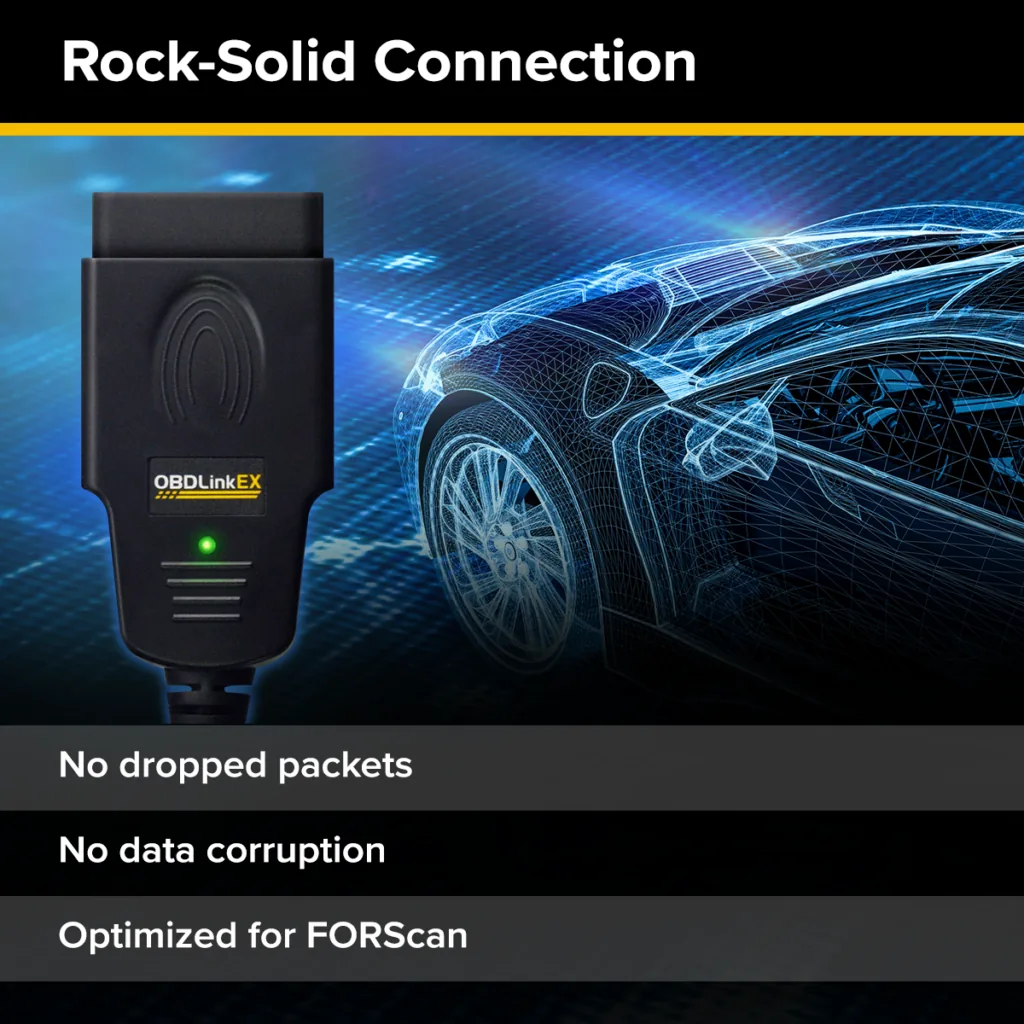
Choose an interface documented for your vehicle family and intended functions. A basic ELM327 may read generic data, while Ford-specific work can require reliable HS-CAN and MS-CAN support plus a stable USB or tested wireless profile. Read the manufacturer's notes and avoid listings that promise every feature without naming bus paths.
Do not install a cracked, pre-activated or repacked installer. It can change the diagnostic chain at exactly the moment you need trustworthy communication. Download the developer download page in a normal browser, record what you saw and keep the installer outside the vehicle work folder.
- Prefer a wired adapter for the first session so a wireless sleep or pairing change cannot look like a vehicle fault.
- Check Device Manager after installing the driver; note the COM port and any warning icon before opening FORScan.
- Keep the laptop charged, disable sleep and close programs that could take the COM port.
- Use a stable battery or workshop power plan appropriate for the vehicle; do not start a long session with a weak battery.
Install FORScan on Windows without hiding the evidence
Create a setup record before launching the installer: Windows edition, adapter model, driver package and date. If a restart is requested, complete it before testing the adapter; a half-installed driver can look like an intermittent connection. Keep the default program location unless a documented reason requires another path.
After installation, open the application with no vehicle connected and confirm it starts without a missing-runtime message. Record the visible version and release channel, then close it while you finish the driver and USB checks.
A license prompt is a separate decision from the installation itself. The FORScan license guide explains Hardware ID and Extended License boundaries. Do not paste a license file from a forum, and do not publish your Hardware ID, VIN or registration details in a screenshot.
Connect the adapter and run a first read-only scan
Park the vehicle safely, keep the transmission in the required position and follow the vehicle-specific ignition instructions shown by FORScan. Connect the adapter firmly, then connect the Windows laptop. Do not start by clearing codes or selecting a programming function. The first goal is to see whether the application can identify the vehicle and build a repeatable module list.
Watch the connection messages. An ignition-cycle prompt is not an error by itself, while a changing COM port, repeated disconnect or incomplete VIN can indicate a driver, cable, power or adapter problem. Let the scan finish and record modules and warnings before a second connection.
If the adapter supports a high-speed and medium-speed CAN path, confirm that the switch or automatic mode is in the position documented for your hardware. Never move a physical switch while the vehicle is communicating. Finish the read, close the session normally and compare the second read only after the first record is safe.
- 1
Prepare the vehicle
Use a stationary, well-ventilated location, stable power and the ignition state required by the vehicle procedure. Keep keys, doors and accessories in the state described by the manufacturer.
- 2
Connect in order
Attach the adapter to the diagnostic port, connect USB or the documented wireless link, then open FORScan and wait for the identification prompt.
- 3
Read before you act
Allow the module scan to complete. Record the vehicle identity, module names, current DTCs and every communication warning before clearing or changing anything.
- 4
Save the baseline
Export or copy the read-only result to a dated location outside the working folder. Keep the untouched file separate from analysis notes.
Save a baseline before you explore configuration functions
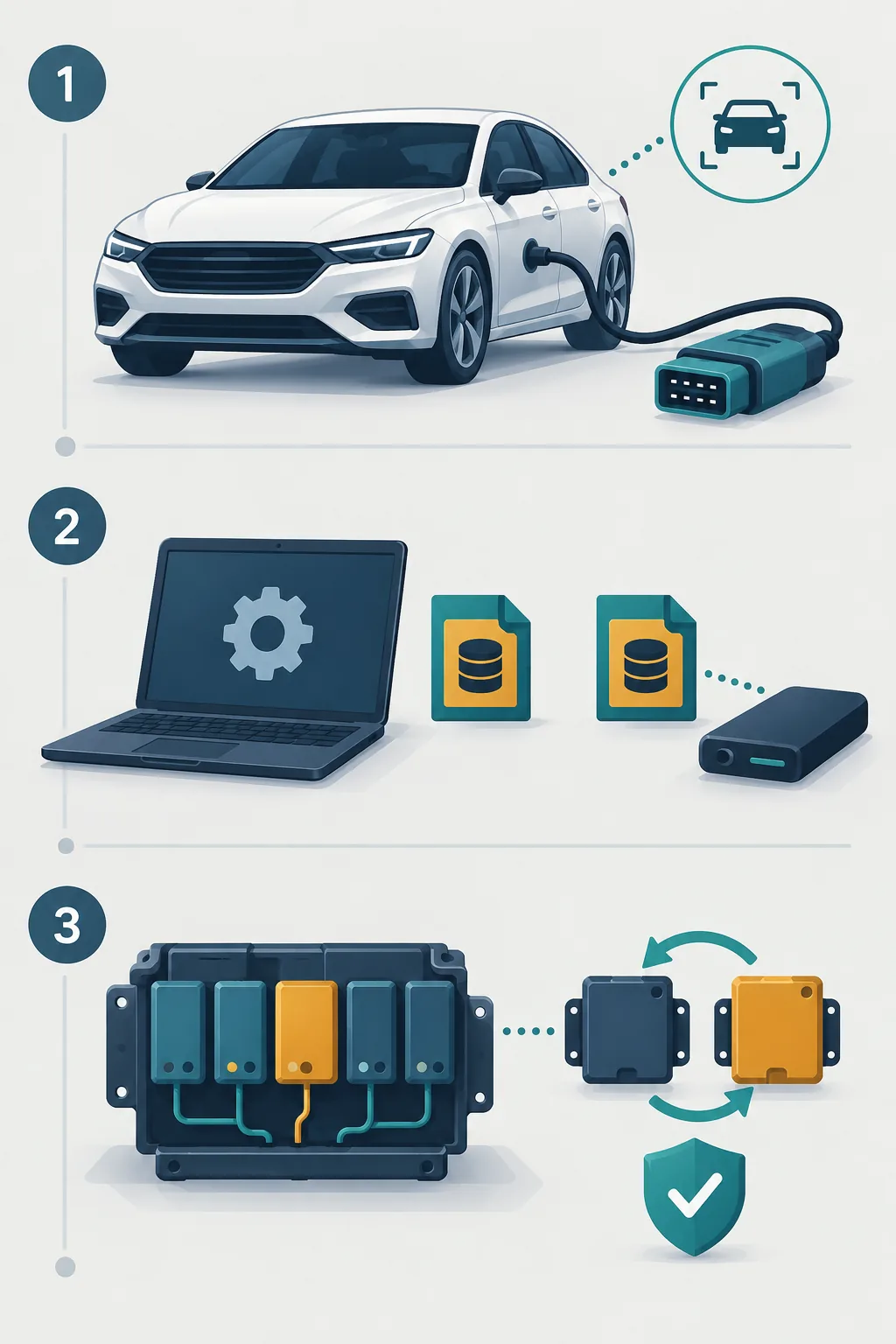
Make a first scan useful later with a filename containing a masked vehicle label, model year, module name and date. Keep the untouched export protected and use a copy for comparisons. Never overwrite it after clearing a DTC, changing ignition state or trying another adapter.
Separate vehicle reports from manufacturer references and community suggestions. A factory lookup explains a value but does not prove a repaired vehicle or replacement module should match it. A community spreadsheet is a lead, not permission to paste a full block.
The As-Built backup guide shows the same separation in more detail. For a first setup, the practical rule is simple: read the vehicle, preserve the read and only then decide whether a later, documented task needs more access.
Troubleshoot common FORScan setup failures
When setup fails, change one variable at a time and return to the last known-good read. Test the USB port, driver, pairing and ignition cycle separately, recording each result. If the application identifies the vehicle but cannot open one module, keep that identification record and investigate the module separately.
A blank or partial module list can reflect low battery, unsupported bus paths, the wrong ignition state or the wrong COM port. A license prompt does not prove the adapter is broken, and license activation does not prove every bus is reachable. Use the narrowest safe test.
- Close FORScan before reinstalling a driver or changing a COM-port assignment.
- Do not unplug the adapter while the application reports that a module is busy.
- If voltage, communication or ignition state is uncertain, stop and recover the setup first.
- Contact the adapter or software developer with a concise private log; do not upload raw vehicle data.
| Symptom | Safe check | Stop condition |
|---|---|---|
| Adapter not listed | Check Device Manager, cable, driver and COM port | Unknown driver warning or repeated port changes |
| VIN or modules incomplete | Confirm ignition, power and supported bus mode | Battery falls or the adapter disconnects |
| Read works once only | Repeat with the same order and note timing | No repeatable connection after basic checks |
| Function is locked | Read the license and vehicle requirements | A forum file is offered as a shortcut |
FORScan setup FAQ
What do I need for a FORScan setup?
You need supported Windows, a developer-sourced installer, a compatible adapter and driver, a stationary vehicle and stable power. Start with a read-only scan and record the adapter, driver and module list.
Can I use any ELM327 adapter with FORScan?
No. Some ELM327 devices read generic OBD data but lack the stable connection or HS-CAN and MS-CAN paths needed for Ford-family modules. Check the adapter documentation and ELM327 guide first.
Should I install the driver before opening FORScan?
Yes. Install the documented driver, restart when requested and confirm the COM port in Device Manager before a vehicle session. Resolve warning icons or changing ports first.
What should I do on the first FORScan connection?
Park safely, connect in the documented order, follow the ignition prompt and complete a read-only scan. Save vehicle identity, modules, DTCs and warnings before changing anything.
Why does FORScan connect but show only some modules?
Check ignition, battery, adapter bus support, driver and vehicle profile. Trim, market, model year and module hardware affect the module list. Save the partial result and stop if communication is unstable.
Do I need a license for a first scan?
Installation, licensing and vehicle functions are separate. Some read-only diagnostics may work without an Extended License, while configuration or programming can require valid access. Check current developer licensing information.
Is FORScan setup the same as changing As-Built data?
No. Setup ends with a stable connection and protected baseline. As-Built editing is a separate, higher-risk workflow requiring exact vehicle and module matching, rollback and a reason to write.
This guide uses the site's first-party check dated August 1, 2026. The official host was unreachable on October 8, 2026, so no newer version, file size or direct installer URL is claimed.
FORScan developer download pageSite version evidence