
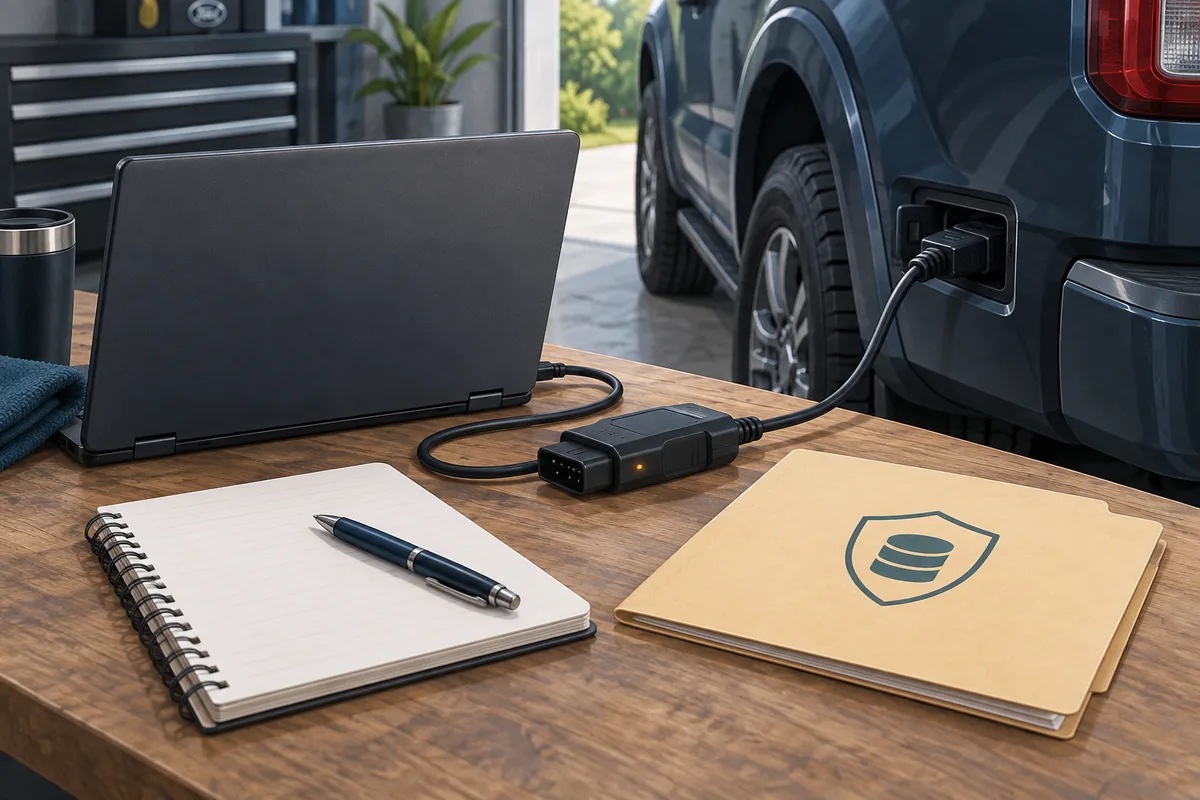
FORScan As-Built work is safest when the vehicle's current data is the source of truth. Connect with a reliable adapter, identify the exact vehicle and modules, save original values outside the working folder, and compare an edit against the same year, module, hardware and market. A community spreadsheet is only a research lead. If connection, voltage or evidence is uncertain, stop before writing.
What is FORScan As-Built data?
FORScan As-Built data is a set of configuration values read from a particular vehicle module. It describes how that module is currently configured; it is not a general feature catalog and it is not the same thing as a firmware file. The same-looking function can use different values on another model year, trim, market or module revision.
Searches for FORScan save as built, manual load and As-Built spreadsheets often mix three separate tasks: reading the vehicle, storing a backup and applying a change. Keep those tasks separate. The read establishes what is actually installed, the backup gives you a recovery reference and the write is the highest-risk step.
| Action | What it means | Safe interpretation |
|---|---|---|
| Read | FORScan retrieves the current module data | A baseline, not permission to edit |
| Export or back up | You save the original values for comparison | Keep one untouched copy outside the working folder |
| Manual load | You open data from a file or another source | Use only when the source and vehicle match exactly |
| Write | FORScan sends a changed value to the module | Do it only after power, evidence and rollback checks pass |
Prepare before opening an As-Built function
Start with the same foundation as any FORScan session: a Windows installation from the developer source, a documented adapter and a stationary vehicle with stable power. The ELM327 adapter guide explains why a product that can read generic OBD data is not automatically suitable for every manufacturer-specific module. A wired connection is usually easier to observe during a backup or longer session. Record the model year, trim, market and adapter model, charge the laptop, prevent sleep and keep the original backup outside the working folder.
- Use stable vehicle voltage appropriate for the procedure; do not begin a write when the battery is weak.
- Confirm the adapter is detected consistently and that its connection mode matches the Windows setup.
- Save the vehicle profile, VIN-derived identity and module list before changing a setting.
- Keep the original export read-only and use a clearly named copy for analysis.
- Do not download calibration files, firmware mirrors or pre-filled code blocks from an unknown source.
How to back up FORScan As-Built data safely
The backup should represent the vehicle as it was before you inspect or change a value. Use a filename that identifies the vehicle without exposing a full VIN publicly, then include the model year, module name and date. Save the export outside the active working folder, keep a second copy for important vehicles and record the other module names so a later mismatch is visible.
- 1
Connect and identify
Open FORScan in a read-only session, follow the ignition instructions and wait for the VIN and module list to stabilize.
- 2
Record the baseline
Save the vehicle profile, module names, part numbers, current DTCs and any visible communication warning before clearing or changing anything.
- 3
Export the original
Use the available save or export action for the target module. Do not overwrite an older original file with a later working copy.
- 4
Store it outside the work folder
Copy the untouched export to a separate location and label it with a masked vehicle identifier, module, year and date.
- 5
Reconnect and compare
If the setup is new, disconnect and reconnect once in read-only mode. A repeatable device and module list are useful evidence before any write.
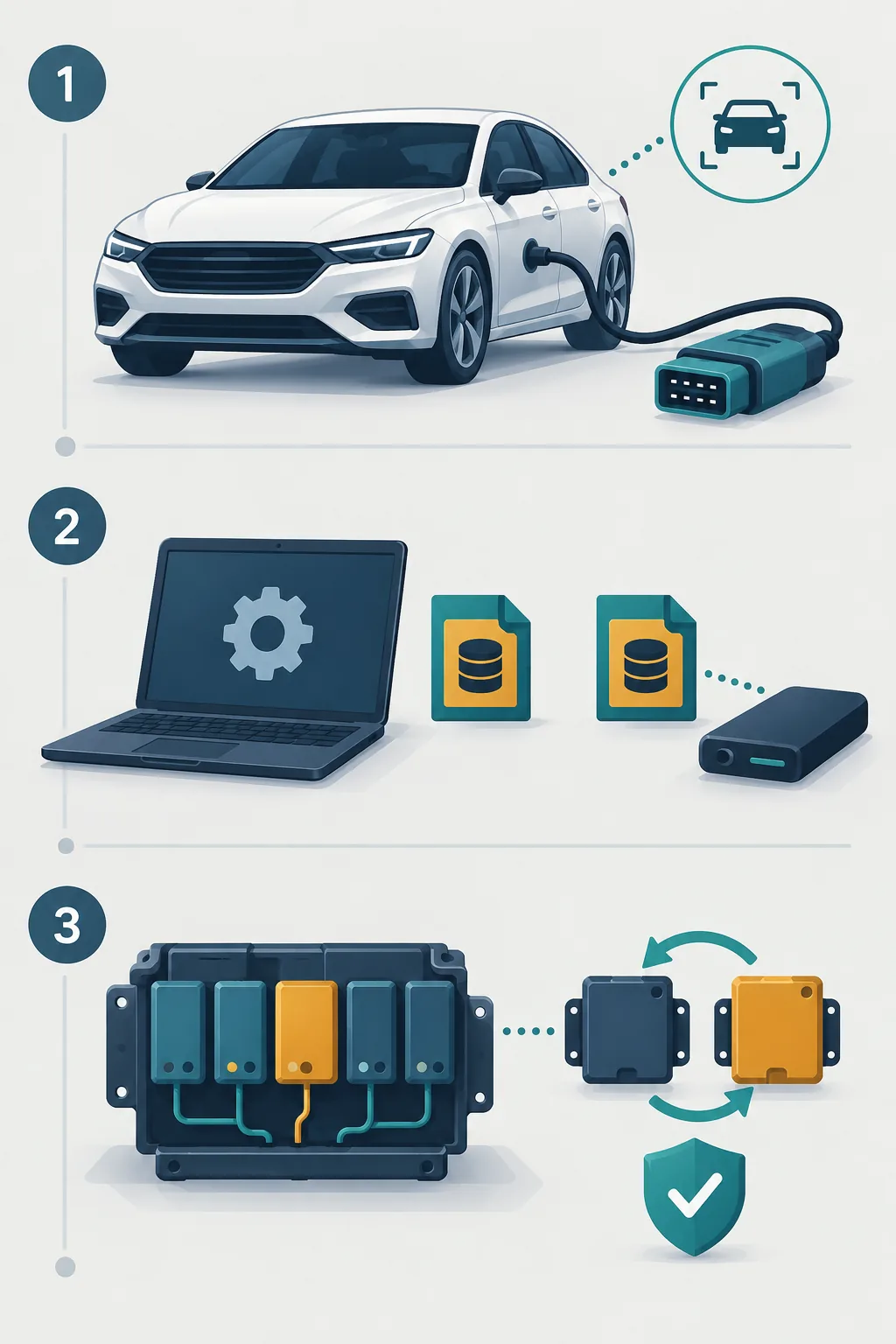
Save, export and manually load are different actions
The phrase manual charge or manual load can describe opening a file for inspection, loading a factory reference or preparing values for a module. It does not prove that the file belongs to your vehicle. Treat every externally sourced file as untrusted until its origin, model year, module, market and original-value context are clear.
A factory As-Built lookup can add context, but it should not replace the data read from the vehicle. Repairs, installed options and replaced modules can make the current state different from a factory record. The Motorcraft As-Built service is a source to compare carefully, not a reason to paste a full block without checking.
| Situation | What to keep | What to avoid |
|---|---|---|
| Your own pre-change read | Untouched export and date | Overwriting it after an edit |
| A factory reference | Source and vehicle lookup details | Assuming it matches every module |
| A community spreadsheet | URL, tested vehicle and original value | Treating one row as universal |
| A file with no provenance | Nothing until verified | Loading it into a live module |
Review a proposed As-Built change before writing
A useful proposal names the exact vehicle, module, original value, new value, reason and restore method. If a post only says that a setting works, treat it as research, not a write instruction. Compare it with your module part number and current As-Built export; confirm it does not require missing hardware or bypass safety, emissions, security or legal rules.
- Exact model year and generation are named.
- The target module and part number match your read.
- The proposed value is tied to a credible source and the original value is recorded.
- The change is limited to one documented field, not a blind full-block paste.
- A stationary test and a rollback path exist before the write.
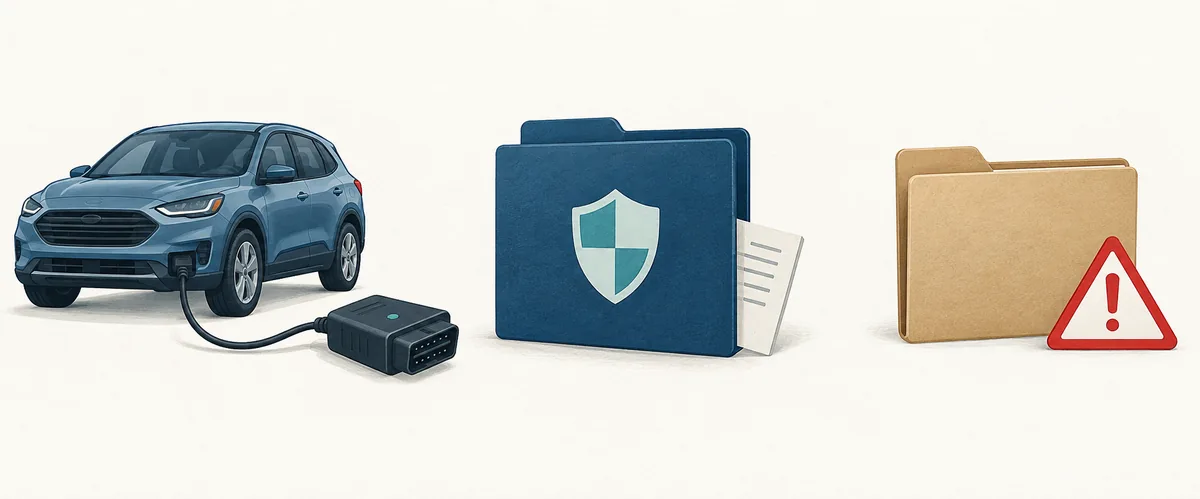
Apply one reversible edit only after the checks pass
Before a write, close downloads and sleep timers, confirm the adapter is still stable and make sure the original export opens from the backup location. Keep the vehicle stationary and use the ignition state required by the procedure. Do not start a write merely because the software displays a configuration menu.
Afterward, let the module finish, rescan and test while stationary. If the result is unexpected, restore the recorded original instead of stacking another change.
- 1
Fresh scan
Confirm there is no new low-voltage, adapter or communication fault before opening the write function.
- 2
Single value
Change only the documented field and record the old value, new value, source and time.
- 3
Complete the cycle
Do not unplug the adapter or let the laptop sleep while FORScan reports that the module is busy.
- 4
Verify and decide
Rescan, test safely and restore the original if the result is not expected. Do not stack a second change on an unresolved first result.
Stop conditions and a practical recovery plan
Stop before writing if the adapter disconnects, the COM port changes, voltage falls, the module list is inconsistent or the proposed data has no trustworthy provenance. Stop during a session if FORScan reports a communication error, the laptop becomes unstable or the vehicle enters an unexpected state. Repeating the same write is not a recovery plan.
If the module still communicates, save the current error and restore the last known original value using the documented procedure. Recheck power, adapter, ignition state and vehicle profile. If a module becomes unresponsive, a safety system stays faulted or the vehicle will not start, stop DIY attempts and use qualified support with the backup and event sequence.
- Keep the original export, current error and session notes together.
- Do not delete the working copy until the vehicle has been checked.
- Do not use a random internet value as a recovery code.
- For firmware, immobilizer, security or non-responsive-module work, seek qualified support.
FORScan As-Built FAQ
What is FORScan As-Built data?
It is vehicle-specific configuration data read from a module. It describes the current setup; it is not a universal code list or a firmware file.
How do I save FORScan As-Built data?
Identify the vehicle in a read-only session, record the module and current state, use the available export or save action, then keep an untouched copy outside the active working folder.
Can I manually load an As-Built file?
A file can sometimes be opened or loaded for review, but loading it does not prove that it matches your vehicle. Verify the model year, module, hardware, market and provenance before any write.
Can FORScan Lite read As-Built data?
Capabilities depend on the mobile product, vehicle and supported function. Do not assume that a mobile read provides the same configuration workflow as desktop FORScan; check the current official product information first.
Can I use another vehicle's As-Built values?
Treat another vehicle's values as research only. Different years, modules, trims, repairs and markets can change the correct data. Your own pre-change export remains the safer baseline.
Do I need a backup before editing?
Yes. Keep an untouched export and a separate working copy before opening a write function. A screenshot alone is not an adequate recovery plan for every module.
What should I do if FORScan loses communication?
Stop writing, keep power and connections stable, record the error and avoid repeated attempts. If the module stays unresponsive or a safety system is affected, use qualified support.
Where can I verify FORScan source and version information?
Use the official FORScan download page for software source information and the site's version guide for a separate explanation of verified versus unverified release facts.
This guide separates first-party software and vehicle-source context from community spreadsheet leads. The three images are editorial illustrations, not real FORScan screens or official vehicle records.
FORScan developer download pageFORScan official forumMotorcraft As-Built serviceFord owner manuals and support