
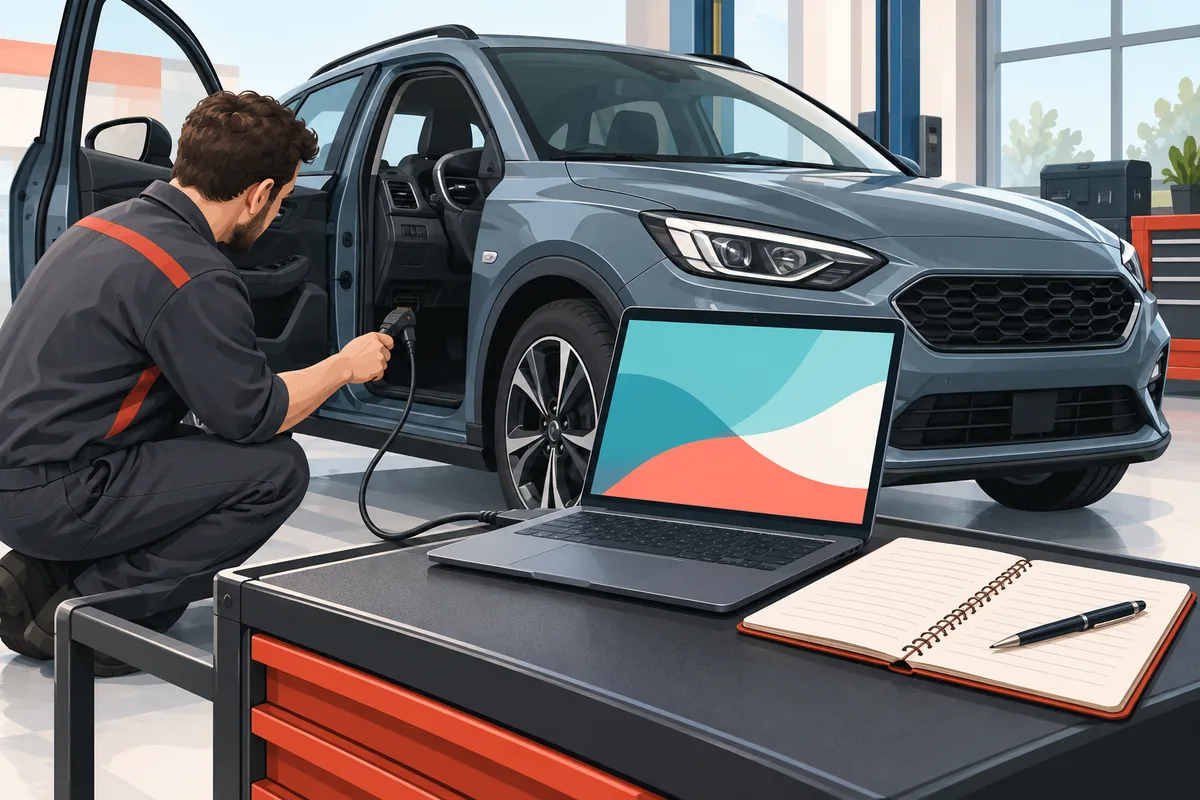
To handle FORScan DTC codes, connect with a supported adapter, let the vehicle scan finish, and save the original results before clearing anything. Record the code with its reporting module, status, symptoms and scan date. A code is a diagnostic clue, not proof that one named component has failed. Keep it for a repair visit or an unresolved warning; clear it only after you understand the reason and have addressed it. Then repeat the same scan and check what returns.
How to Read FORScan DTC Codes by Module
A FORScan DTC code is a diagnostic trouble code (DTC) reported by a vehicle control module. Depending on the vehicle, adapter, software and network coverage, FORScan may show modules a basic generic reader cannot reach. The module matters: an engine code and a restraint or braking-system code describe different systems.
Treat the description as a starting point, not a parts diagnosis. A code identifies a monitored condition or circuit; it does not prove which component failed or whether the condition is still present. Intermittent faults may remain in memory, so record the exact status FORScan displays, such as current, pending or stored.
Keep each full code with its reporting module and context. This gives you or a qualified technician a useful record for vehicle-specific service information.
- Module: record the system that reported the code, not just the short code number.
- Status: note the exact state or indicator displayed by your FORScan version.
- Context: capture symptoms, warning lamps, recent work and when the issue appeared.
Prepare Before You Read or Clear a Code
Park safely and follow the vehicle and adapter instructions for ignition state. Never scan while driving. Keep the laptop awake and the cable still. If communication repeatedly fails, the adapter disconnects or voltage is unstable, stop and correct the setup before interpreting an incomplete scan.
Choose a private place to save the original scan. If a repair facility will inspect the vehicle, ask whether it wants the codes left untouched; the original record may help diagnosis.
- Record the vehicle year/model and known engine or trim, plus FORScan and adapter details.
- Keep the vehicle stationary and follow its documented ignition instructions.
- Do not begin a configuration, programming or service procedure as part of a DTC check.
- Redact the VIN, account details and other identifiers before sharing logs.
Read and Save FORScan DTC Results
Menu names vary by platform and release. Follow the labels in your installed version; the sequence below describes the task, not a universal screen layout.
Wait for vehicle identification and the module scan to finish. Record missing modules or communication failures rather than treating an incomplete list as a full report. Coverage depends on vehicle support and the adapter's network path.
- 1
Open the DTC view
After the vehicle profile and scan are ready, open the diagnostic trouble-code function and review the modules FORScan identifies.
- 2
Save the original
Use the available export option or make a private note. Keep an untouched copy with its date and vehicle label.
- 3
Review each module
Record the full code, displayed status and any description or context for every reporting module.
- 4
Add symptoms
Note warning lamps, operating conditions and recent repairs. A short description alone cannot identify a failed part.
What to Record for Each Module Code
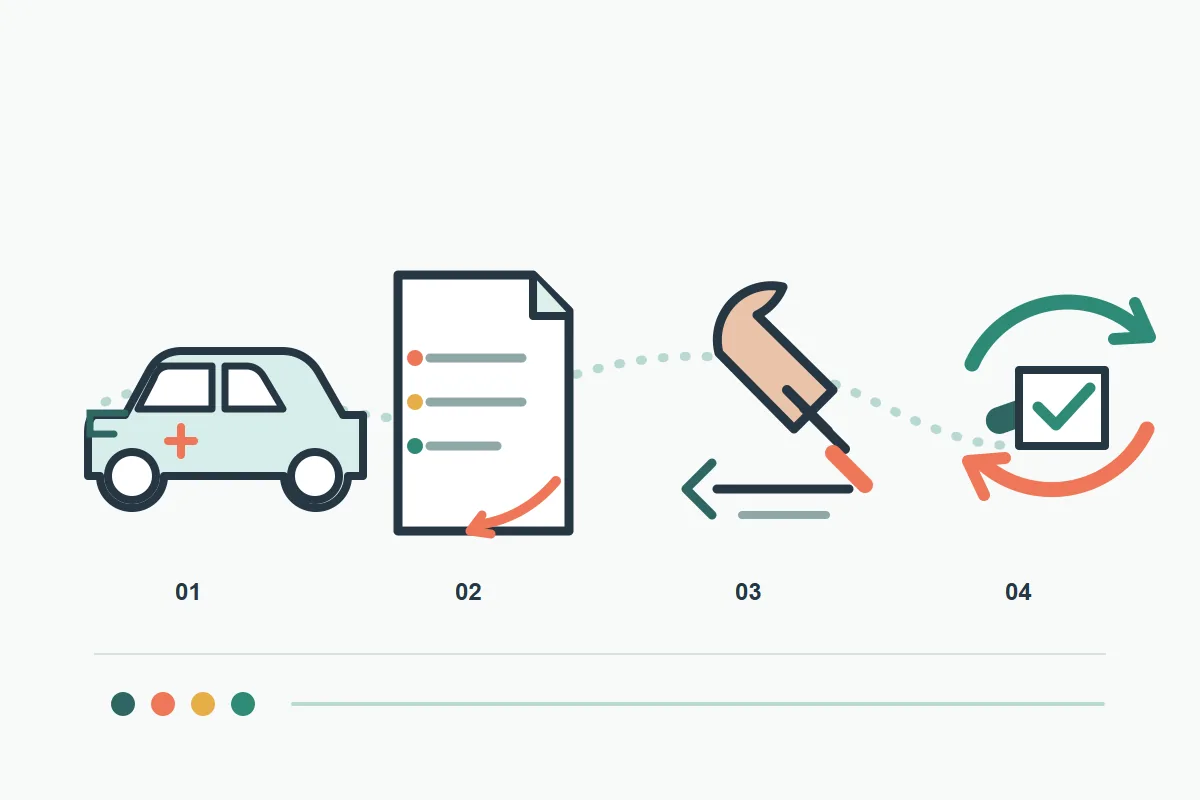
When logging FORScan DTC codes, keep a useful record that explains the result without reopening the session. Date each copy and separate raw results from your interpretation. For a before/after comparison, use the same vehicle, adapter and scan conditions where practical.
Save any relevant freeze-frame or additional data with the code. Keep the raw export unchanged; add comments to a separate copy and redact identifiers before sharing it.
| Field | What to keep | Why it helps |
|---|---|---|
| Module | The exact module name shown | Separates similar codes reported by different systems |
| Code and status | Full code and exact displayed state | Preserves what was reported |
| Description | Application wording, labeled as a description | Context, not a parts diagnosis |
| Conditions | Symptoms, warnings and timing | Connects the scan to the driver's report |
| Session | Date, vehicle, software and adapter | Supports repeat comparisons |
| Changes | Repairs or resets since the last scan | Explains later differences |
When Should You Clear Codes with FORScan?
Clearing is a reset, not a repair. A warning may disappear temporarily while its cause remains. Save the full scan and decide whether diagnosis is needed first. If a shop is investigating the same issue, ask before clearing; the original record may help.
A community FORScan walkthrough notes that a reset can remove diagnostic context and may affect emissions readiness on some vehicles. Behavior and inspection rules vary. Do not clear a code to hide a warning or force an inspection result; check current local requirements or ask a qualified shop.
- Keep codes when a warning is active, the cause is unknown or a shop will inspect the vehicle.
- Do not clear safety-system codes to see whether the lamp comes back.
- Consider clearing only after the cause has been addressed and the original record is safely saved.
- If unsure what a reset changes, consult vehicle-specific service information or a qualified technician.
Rescan After the Repair and Compare
After repair, follow the vehicle's documented procedure and repeat the scan over a stable connection. Compare FORScan DTC codes from the same modules, displayed statuses and symptoms with your saved baseline. One immediate scan without a returning code does not prove every condition is resolved; some monitors need specific operating conditions.
Keep both scans and note what changed or returned. If the code reappears, do not choose another part from the text label alone. Review the diagnosis and repair with vehicle-specific information or a qualified technician.
- 1
Use the same scope
Read the same available modules and note any communication gaps.
- 2
Compare statuses
Check whether each code is absent, stored, pending or present again as FORScan displays it.
- 3
Save the result
Add the repair date. If symptoms or safety warnings remain, seek diagnosis instead of repeating resets.
Common FORScan DTC Results and Safe Next Steps
Interpret results with the module, status, vehicle and symptoms. These are cautious next steps, not component diagnoses.
Generic code lookups may miss model-year, module, calibration or market differences. Prefer current manufacturer service information. Redact vehicle identifiers and treat forum posts as unverified until checked.
| What you see | What it may mean | Next step |
|---|---|---|
| Code in one module | A monitored condition was reported | Save it and check vehicle-specific service information |
| No code in a module | None was reported in this scan | Do not assume every function or intermittent fault was covered |
| Communication error | The scan may be incomplete | Check the adapter path and connection before interpreting results |
| Code returns after repair | The condition or repair may need review | Save the scan and seek diagnosis; avoid repeated resets |
Limits, Privacy and When to Get Help
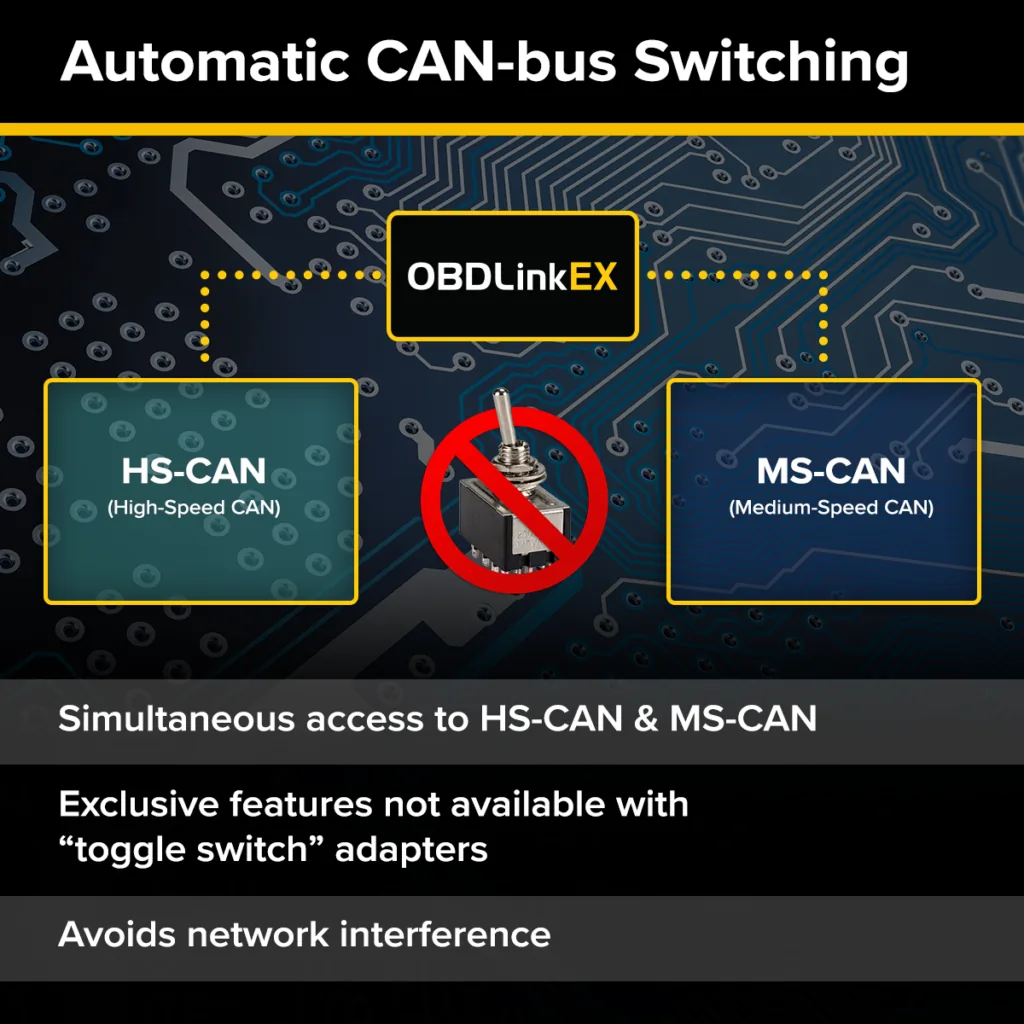
Coverage depends on the vehicle, adapter, connection, software and scan path. Some modules may be unavailable. A code read is not a full mechanical inspection or a substitute for the correct diagnostic procedure.
Keep raw scans private: logs and screenshots can expose a VIN, hardware identifiers or account details. Redact them before asking for help. Avoid unofficial code databases, modified installers and unknown drivers.
Get qualified help for braking, steering, restraint, immobilizer, high-voltage or other safety/security systems, abnormal vehicle behavior, or an uncertain procedure. A clear scan record is more useful than an unsupported reset.
FORScan DTC Code FAQs
Do FORScan DTC codes prove that a part has failed?
No. A DTC reports a monitored condition; wiring, power, communication, operating conditions and vehicle-specific factors can affect the cause. Save it and check service information before choosing a repair.
Should I clear FORScan codes before taking my vehicle to a mechanic?
Keep the original scan and ask the repair facility first. Clearing may remove useful context, and some resets affect emissions readiness. Rules vary by vehicle and location.
Can FORScan read codes from every vehicle module?
Not always. Coverage depends on the vehicle, software, adapter and network path. Record missing modules or communication errors; an incomplete scan is not a clean report.
What should I do if the same code returns after clearing it?
Stop resetting. Save and compare both scans, note symptoms and repair work, then use vehicle-specific service information or qualified diagnosis to find the cause.
Is it safe to clear an ABS, airbag or steering code?
No. Do not use clearing to test a safety warning. Follow the owner's manual and arrange qualified diagnosis; a reset cannot repair a braking, restraint or steering fault.
The workflow is general guidance, not a vehicle-specific repair procedure. Menu labels and module coverage vary. The community example is user-contributed, while adapter images below are explicitly identified as manufacturer-specific.
FORScan developer download and support pageOBDLink EX product and manufacturer informationCommunity FORScan diagnostics walkthroughIndependent F-150 code-reading demonstration